Editing tools
Quick hands,
plain Markdown.
Every tool here writes ordinary Markdown into your file. Nothing is hidden in a format only Cartamd can read, and every change is one step to undo.
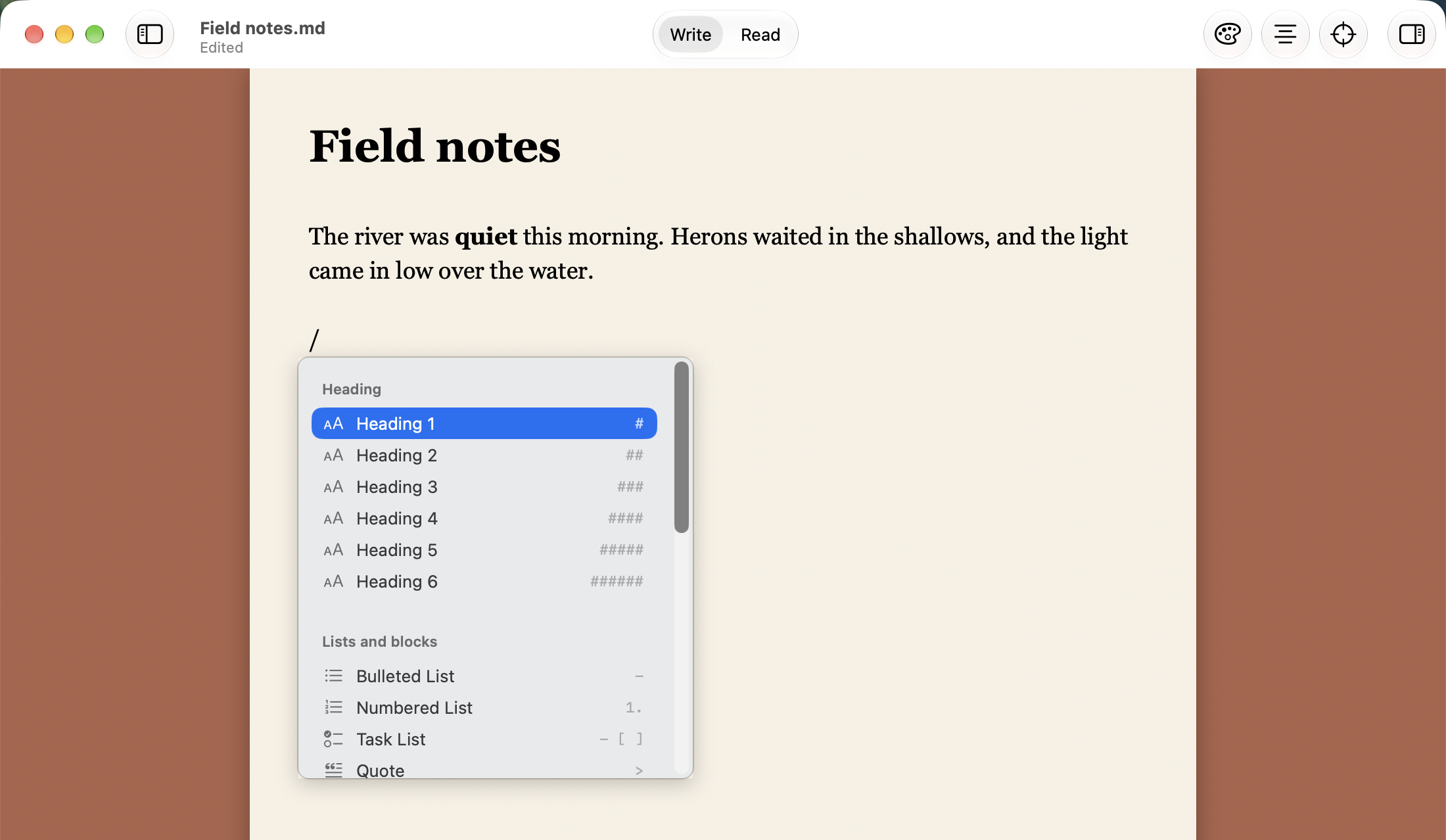
Slash commands
Type / on an empty line for a menu of Markdown to insert: headings, lists, tasks, quotes, code, tables and rules, then alerts, math, Mermaid diagrams, footnotes, links, images and index markers.
- Keep typing to filter. Letters match in order, so
/tblfinds Table. - Return or Tab inserts it and puts the cursor where you type next.
- Esc keeps the slash as typed. A slash anywhere else is just a slash.
Emoji by shortcode
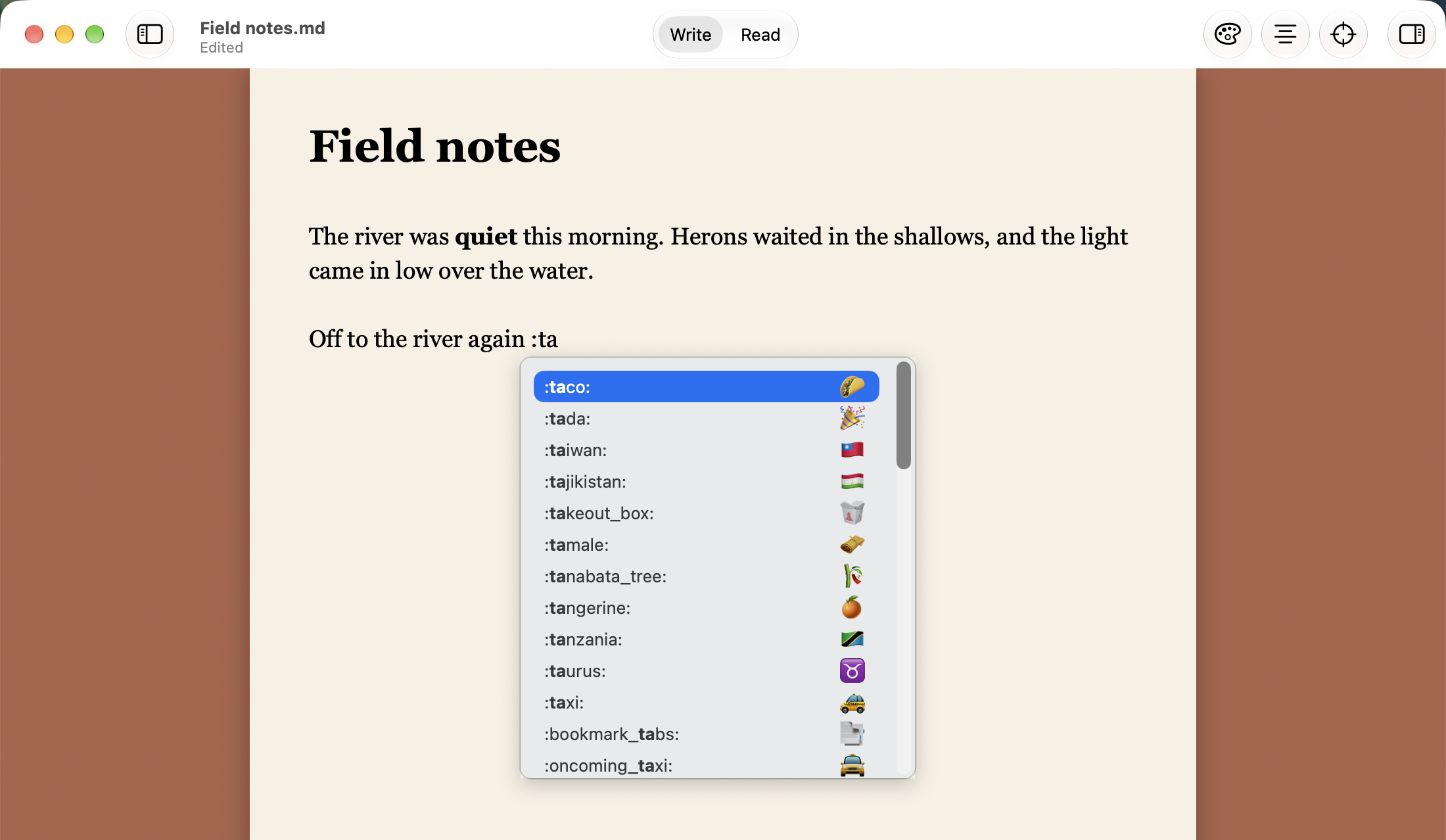
Type : and two letters of a GitHub shortcode, such as :ta, for a list of emoji. Shortcodes that start with what you typed come first, then ones that contain it or share a tag.
The emoji itself goes into the note, not the shortcode, so it looks the same in Read mode and in every export. Times like 10:30 and links stay as typed.
You type
Off to the river again :taCartamd shows
Pasting a link
Paste a single web address and a small menu offers four ways to write it. It stays a plain URL unless you pick another.
With page title is the only choice that goes online, and only when you choose it: Cartamd asks the site for its title, sends no cookies and reads nothing else. You can turn that row off in Settings → Privacy.
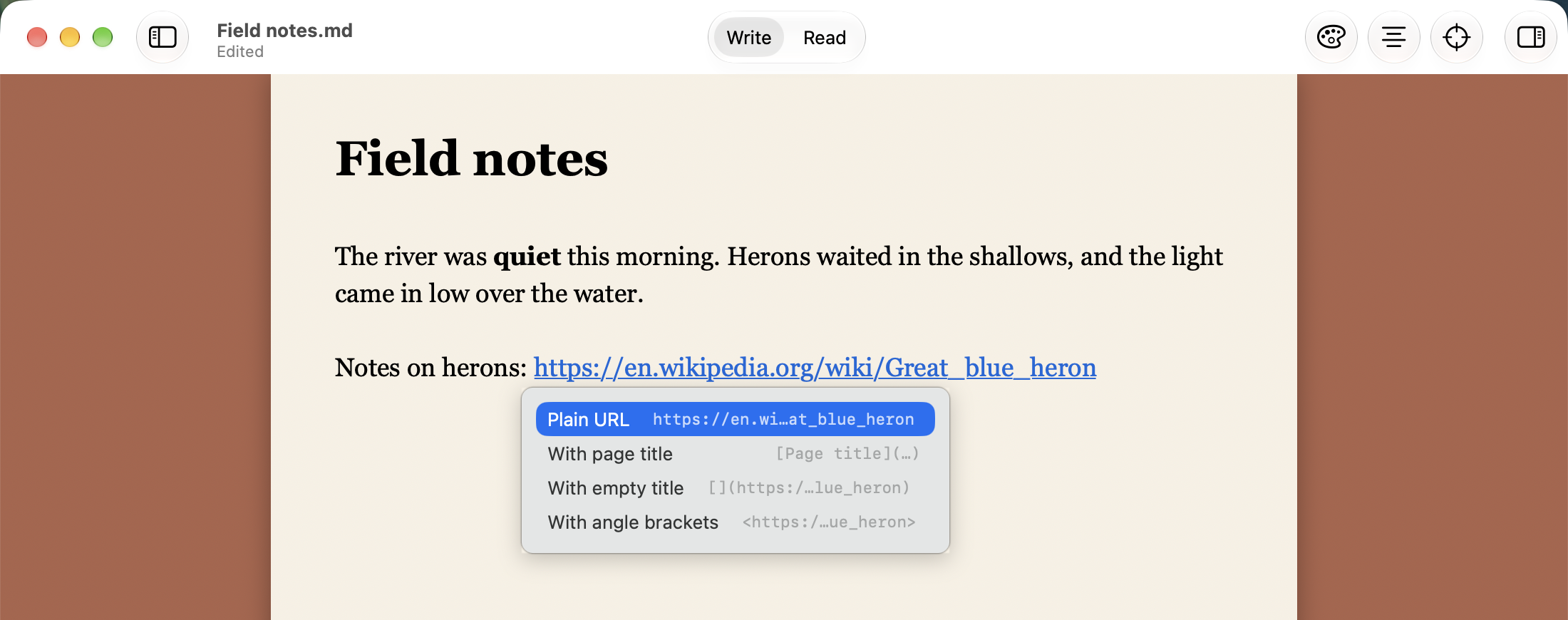
| Choice | Writes |
|---|---|
| Plain URL | https://example.com |
| With page title | [Example Domain](https://example.com) |
| With empty title | [](https://example.com) |
| With angle brackets | <https://example.com> |
A toolbar over your selection
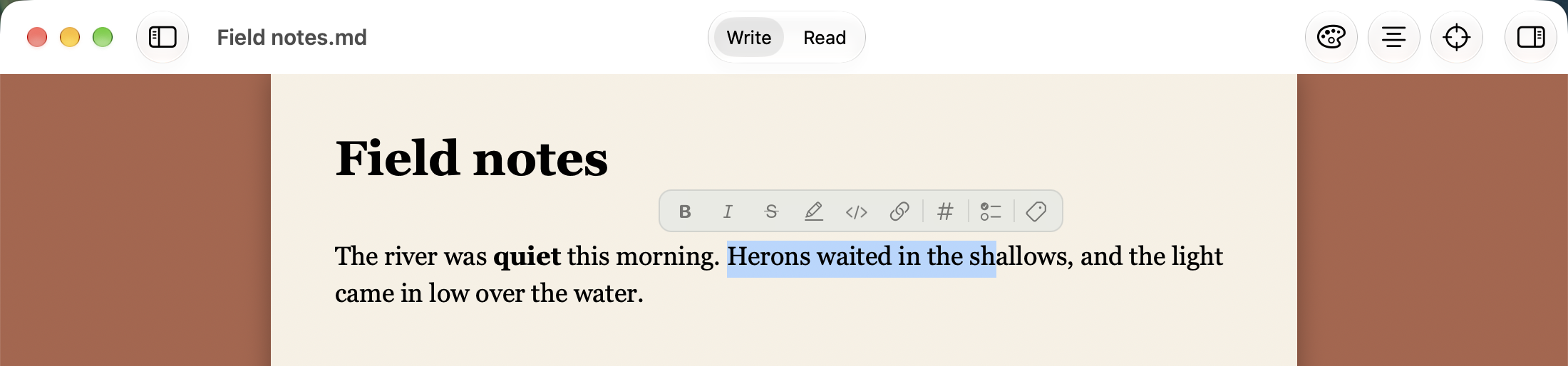
Select text in Write mode and a small formatting toolbar appears just above it: bold, italic, strikethrough, highlight, inline code, link, heading, task and index term. Hover a button for its shortcut.
It never moves the cursor or the selection, and it hides as soon as you type, press Esc or scroll the selection away. Turn it off in Settings → Editing.
Format and context menus
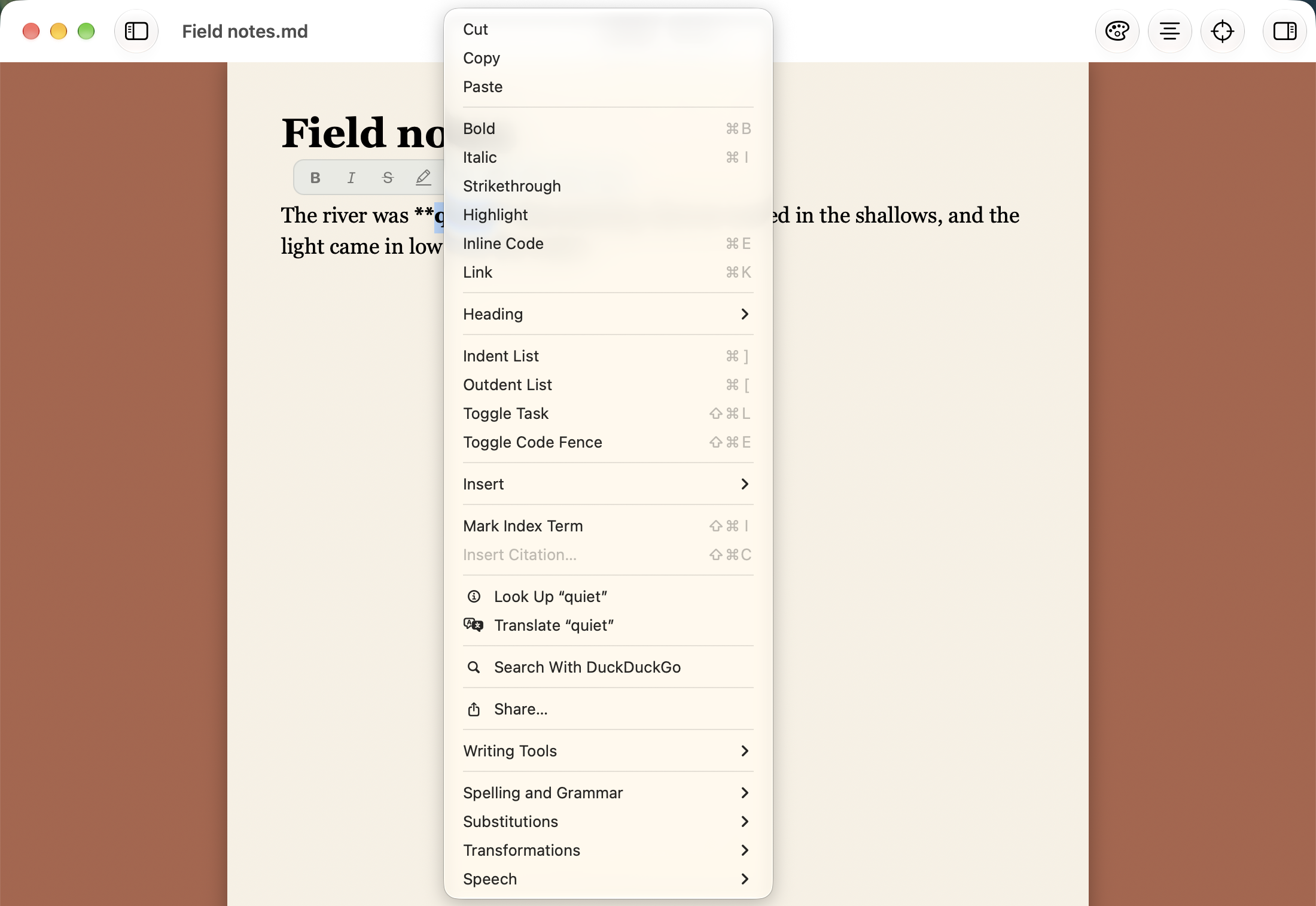
The Format menu and the menu you get by right-clicking text use the same groups in the same order: formatting, headings, lists and blocks, insert, then index and citations. On a table, the table’s own actions come first.
Every command has a shortcut: ⌘B bold, ⌘I italic, ⌘K link, ⌘E inline code, ⌥⌘1 to ⌥⌘6 headings, ⇧⌘L toggle task.
Tables that behave
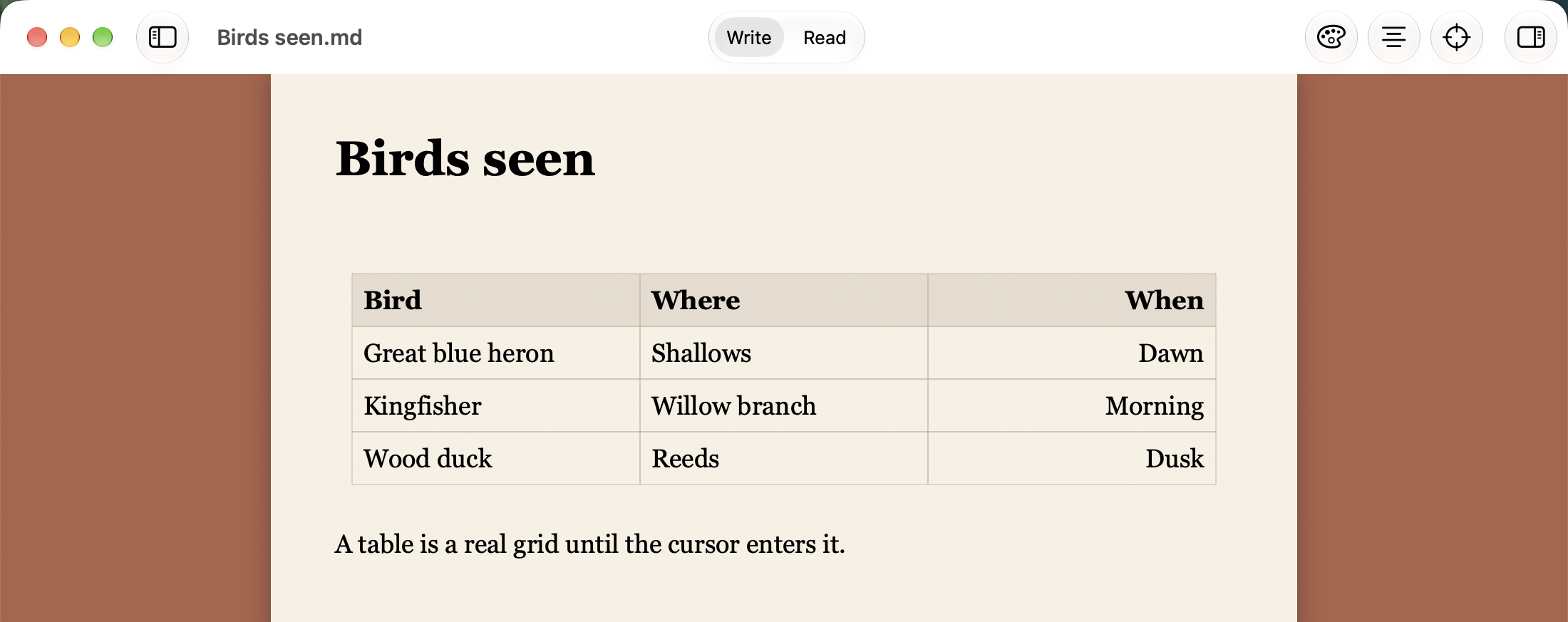
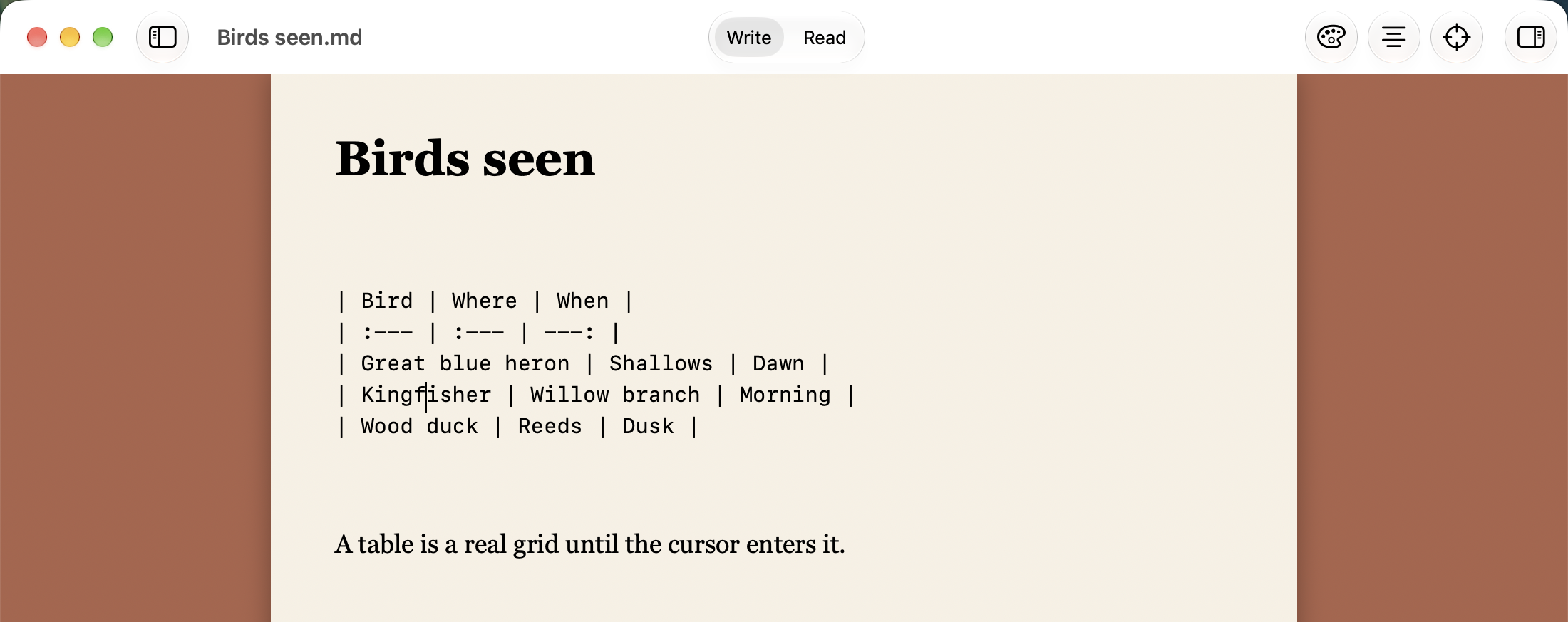
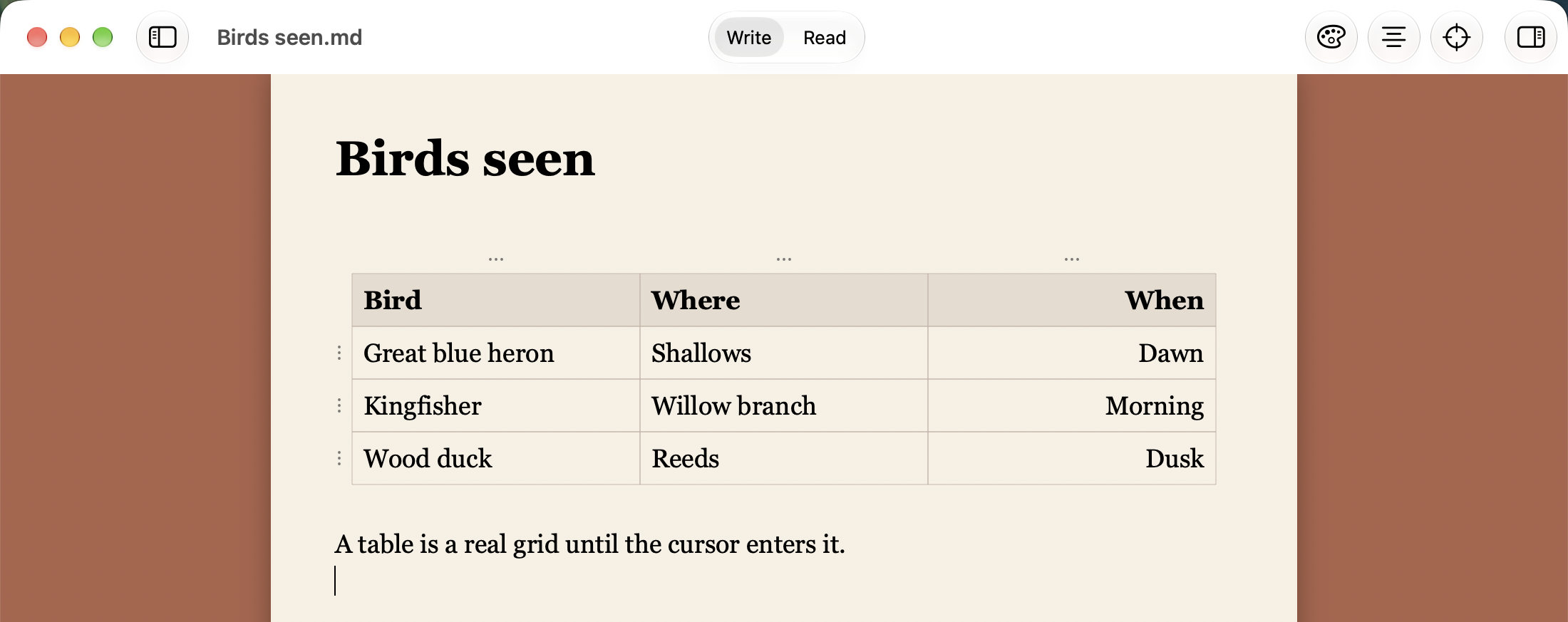
GitHub-style tables render as real grids. Click into one and its Markdown appears, aligned and tidy.
- Tab and ⇧Tab move between cells, Return moves down a row.
- Hover for drag handles to move a row or column.
- Right-click to insert, delete, move or align. Each change is one Undo.
You type
| Bird | Where | When |
| :--- | :--- | ---: |
| Great blue heron | Shallows | Dawn |
| Kingfisher | Willow branch | Morning |
| Wood duck | Reeds | Dusk |
Cartamd shows
Find and replace with patterns
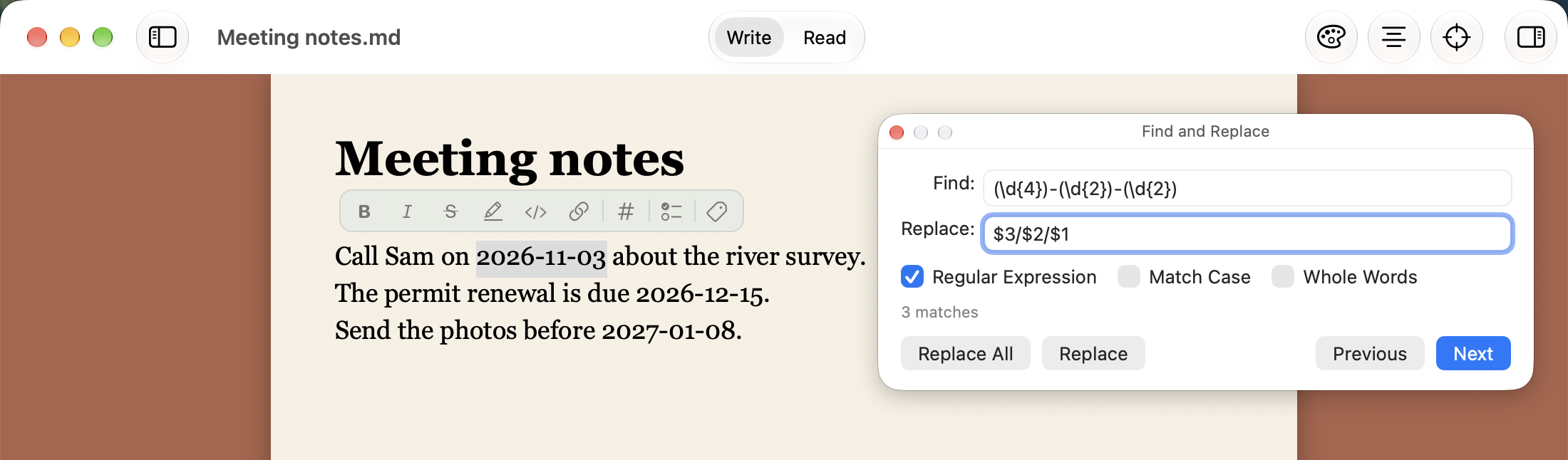
Edit → Find → Find and Replace with Regular Expressions (⌃⌘R) counts matches as you type. In a replacement, $1, $2 and so on insert each group.
Replace All is one edit, so one Undo brings everything back. A broken pattern says what is wrong instead of searching, and the panel searches the Markdown itself, so it finds markers Write mode hides.
Find, then replace with
(\d{4})-(\d{2})-(\d{2})
$3/$2/$1

2026-11-03  →  03/11/2026
Cartamd shows
Find in Folder
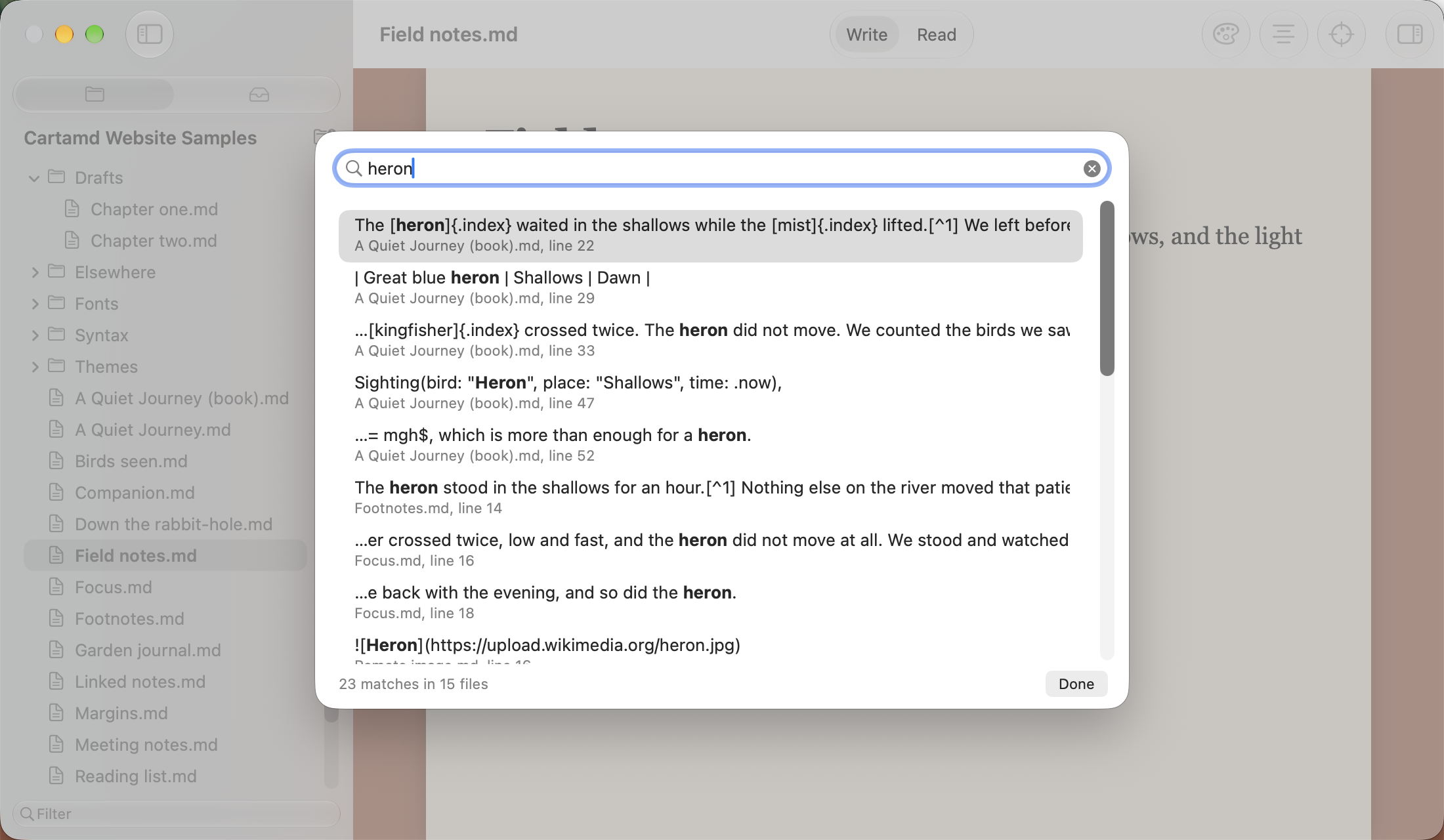
Find in Folder (⌃⌘G) searches the text of every note in the note’s folder and its subfolders, ignoring case and accents, unsaved changes included. Open Quickly (⇧⌘O) finds a note by name.
Choose a result to open its note at the match, in this window, or in a new tab with ⌥Return. Both work only in folders you allowed, and offer Allow Access until you have. Find in Folder is on the Mac only.
Vim mode, and your .vimrc
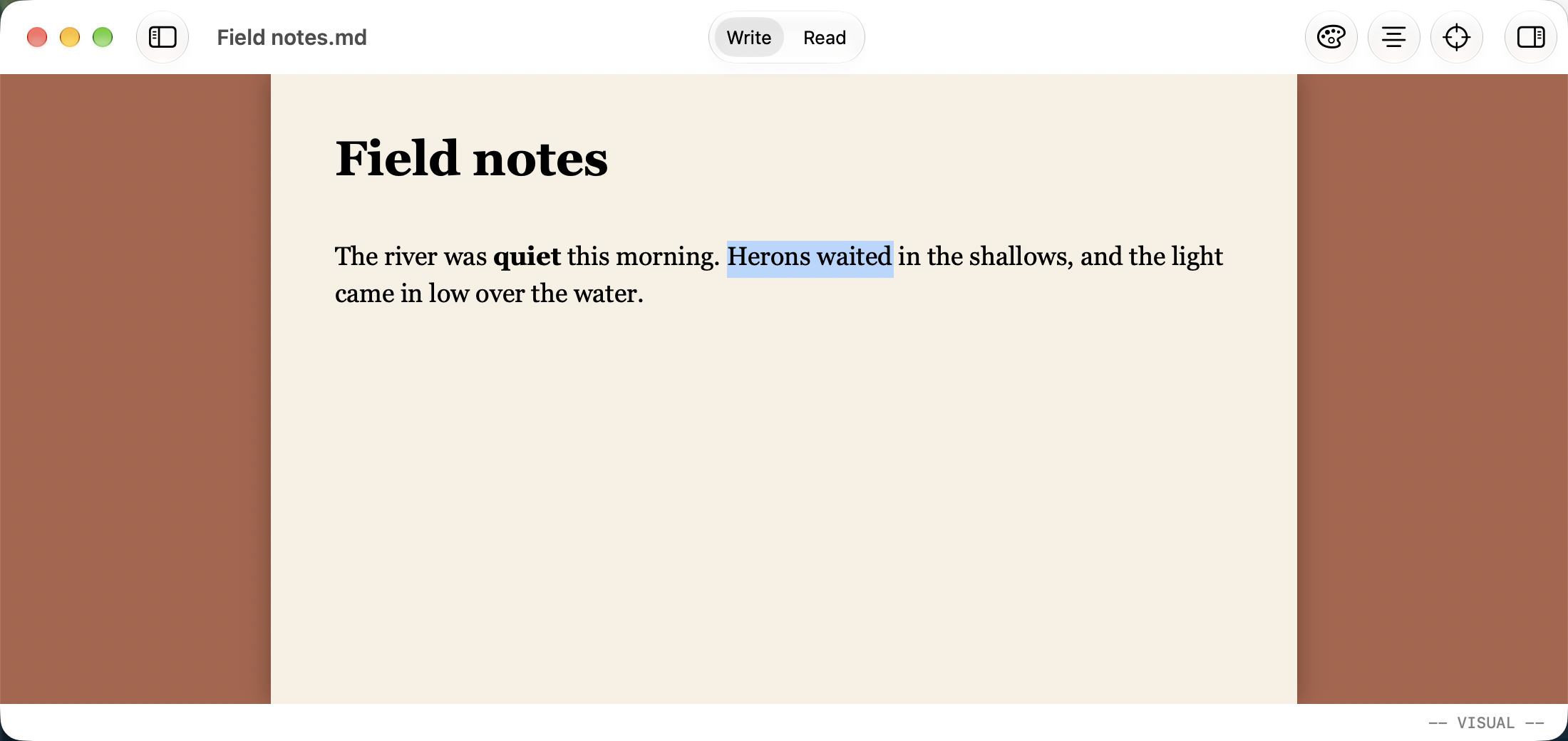
Off by default. Turn on Edit → Vim Mode and the bar below the text shows NORMAL, INSERT, VISUAL or VISUAL LINE. Motions, operators, text objects, counts, registers, . repeat, search and :w work as you expect.
When Esc is a reach, type keys such as jj or jk in Leave insert mode with under Vim key bindings in Settings → Editing. Typed one after another in insert mode they return to normal mode, and none of them lands in the note.
Pick your .vimrc in Settings → Editing and Cartamd applies its mappings and options, such as inoremap jk <Esc> and set ignorecase smartcase, and lists every line it ignored with the reason. It never reads one on its own. Vim mode works on iPhone and iPad too.