Writing
The source when you need it,
the page when you don’t.
Cartamd shows Markdown as a finished page while you type. Step into a line and its markers appear so you can edit them; step out and the page settles again. The file underneath never changes shape.
Markdown, shown where you are
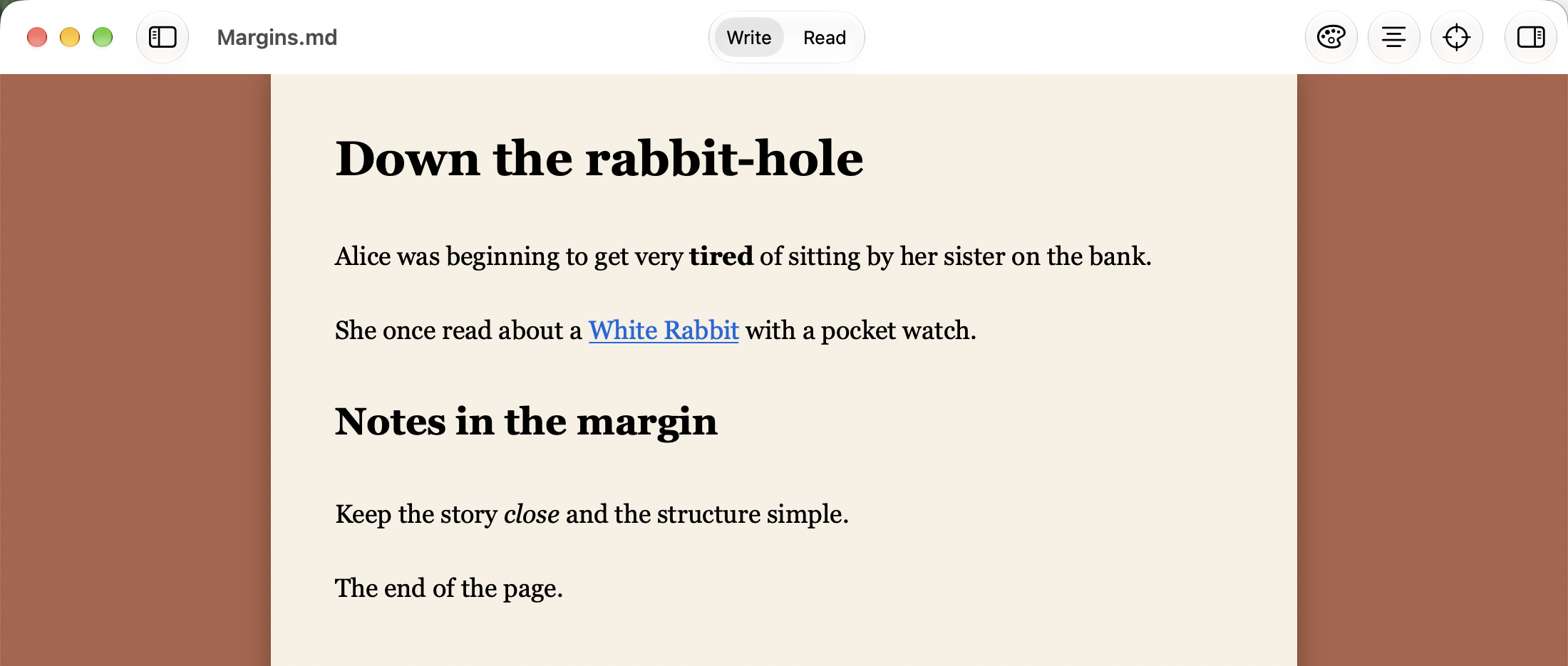
Headings grow and hide their # marks until the cursor enters them. Bold and italic hide their stars. Links, images, tables, equations and diagrams show their source when the cursor is inside, and the preview returns when it leaves.
Typing lands in its final style straight away, so a heading looks like a heading while you write it, and nothing on the page jumps when a line is restyled.
.](/assets/shots/reveal.webp)
A selection takes what you see
Press to select with the mouse and the line you press shows its Markdown before the drag starts, and so does every line the drag reaches. The selection takes exactly what is on screen, ## included, so a cut or copy never surprises you.
Lines the finished selection touches stay shown until you move on.
Show All Markdown
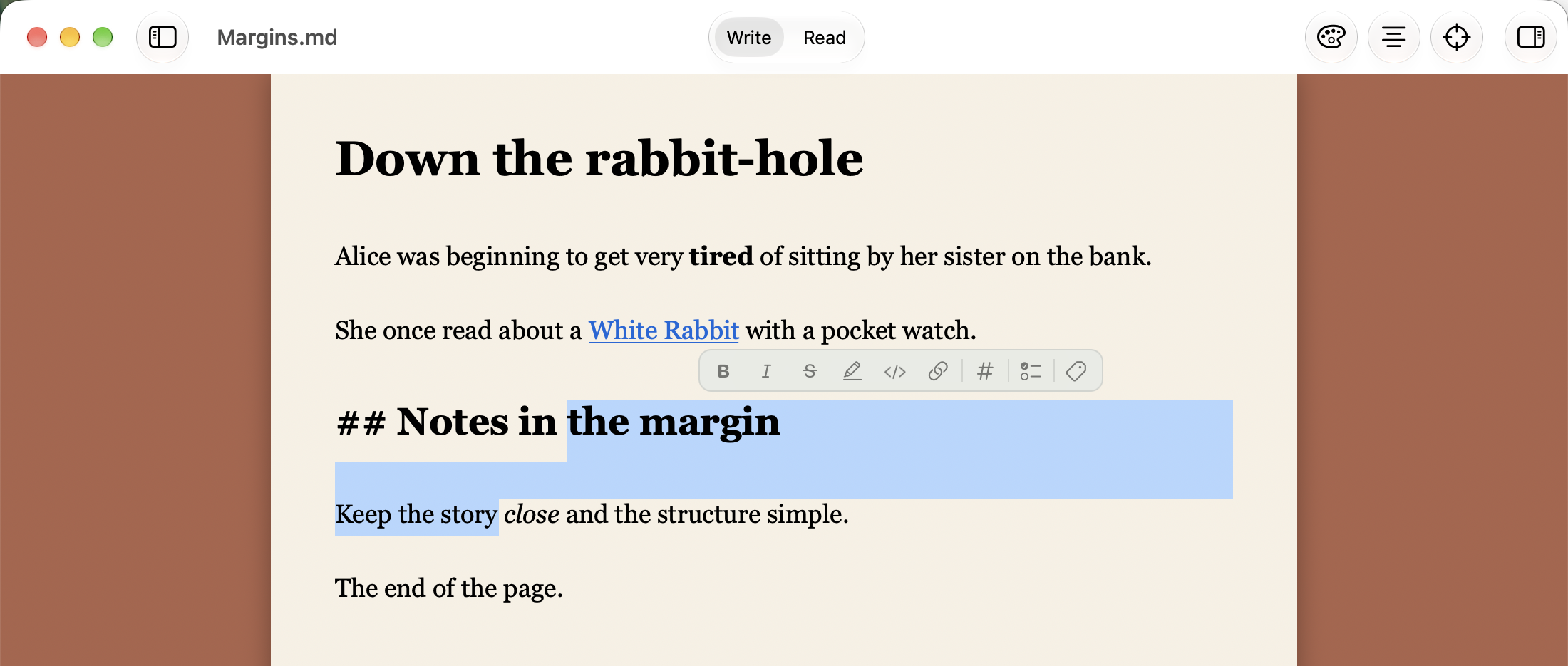
View → Show All Markdown (⌥⌘S) shows every marker at once, including the frontmatter at the top of the file, still with the page’s type and colors.
Cartamd keeps the original Markdown intact, character for character: line endings, frontmatter and anything it does not understand stay as you wrote them.
Write and Read
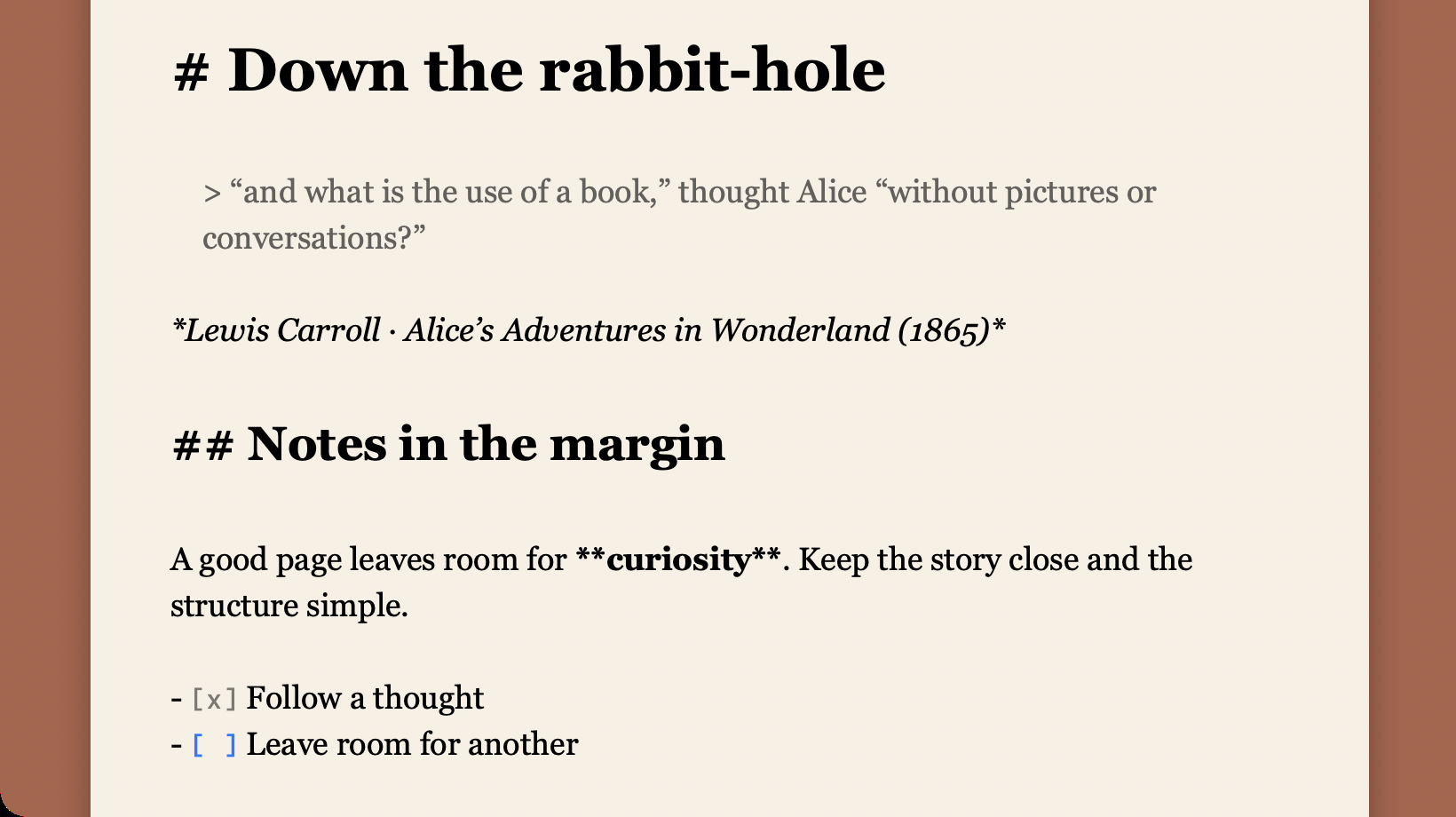
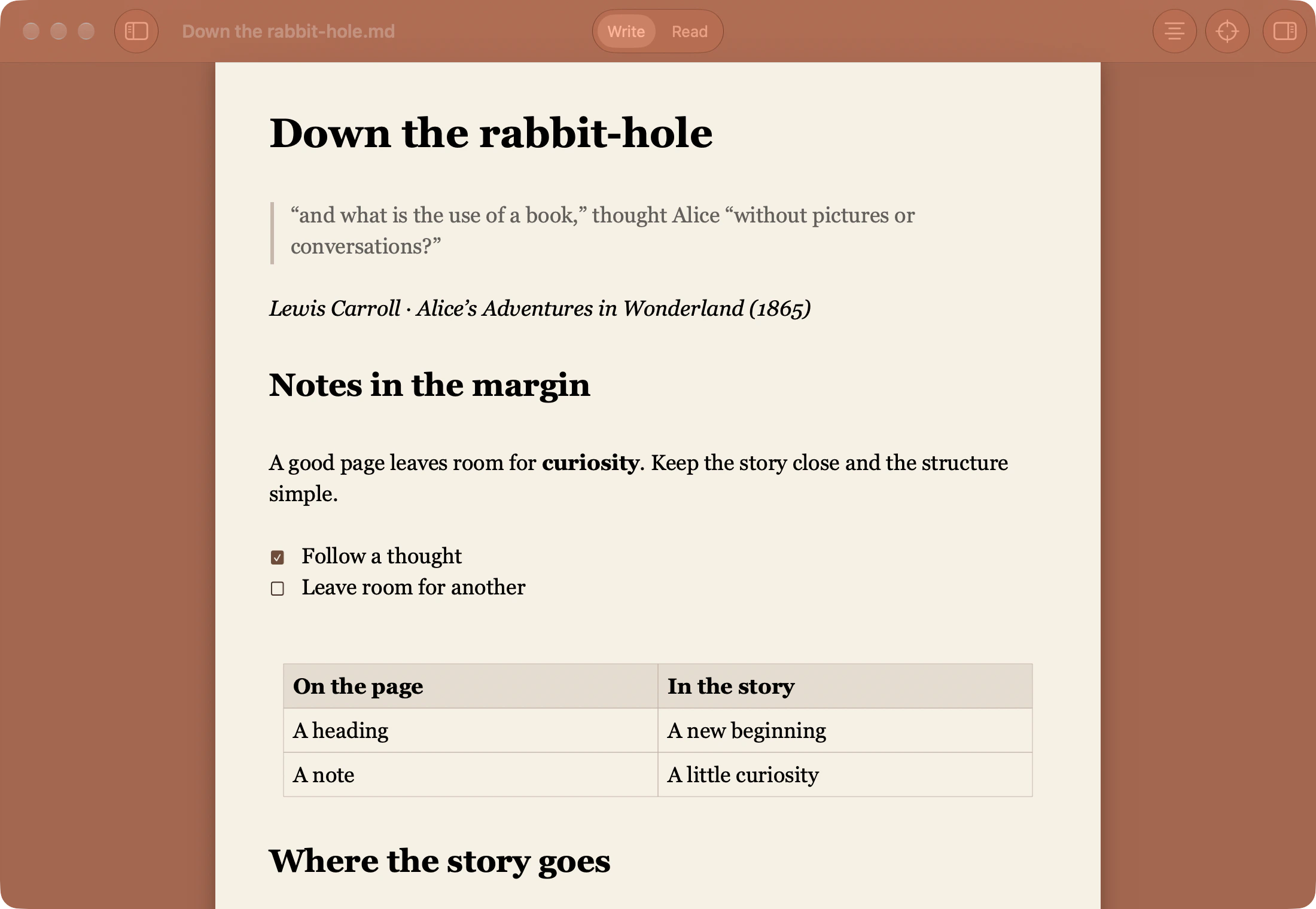
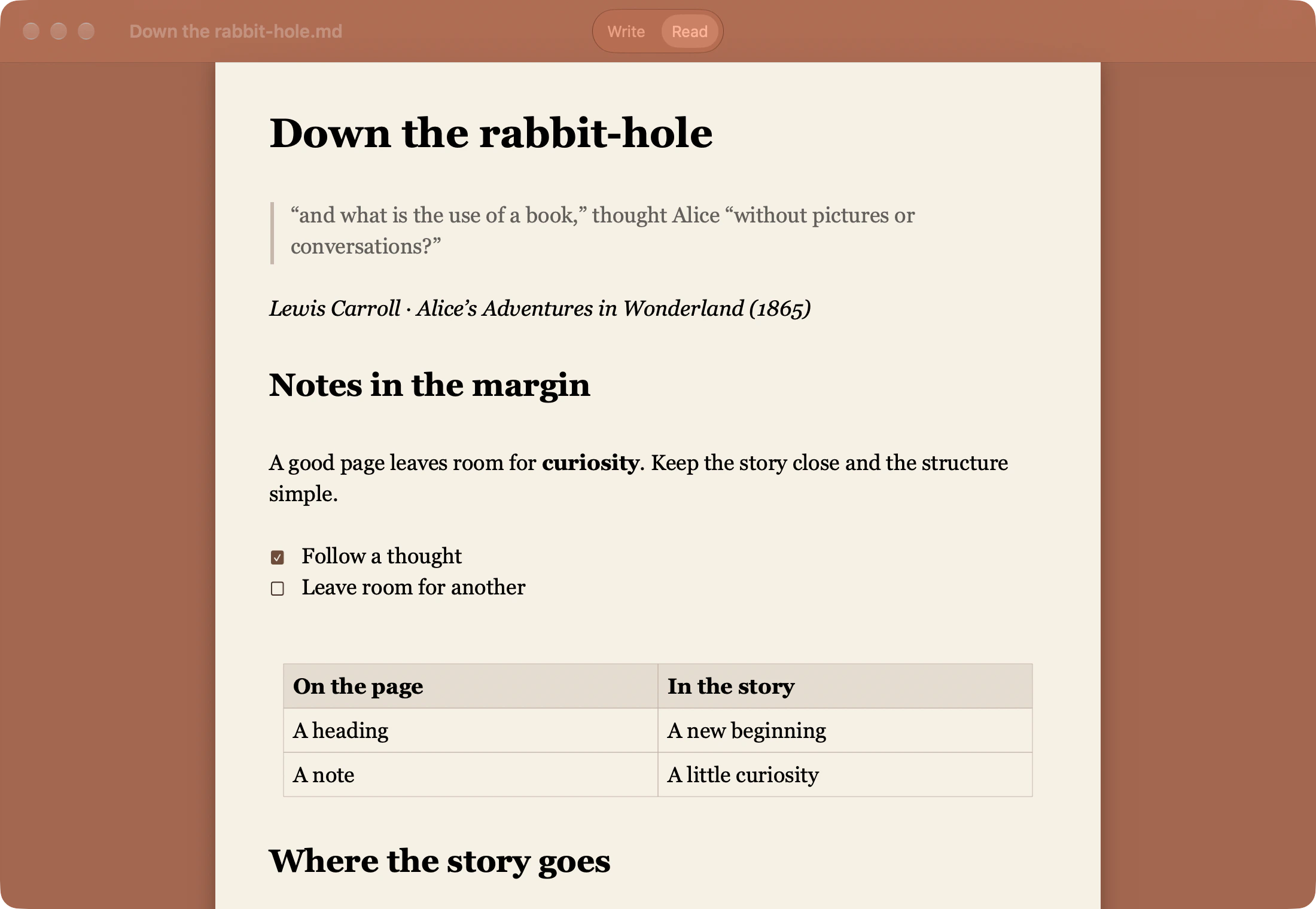
The Write / Read control in the toolbar, or ⌘R, switches modes. Read shows a finished page you can’t edit, in the note’s own style, and hides the editing controls and both side panels.
In Read you can still select and copy, follow links with a plain click and tick off tasks. Back in Write, the cursor is where you left it.
Markdown at a glance
Standard Markdown with the GitHub extensions people use every day, plus highlights, callouts, math and Mermaid diagrams. Everything renders offline: no web view, no CDN.
Put a backslash before a symbol to type it as itself: \* is an asterisk.
HTML in a note shows as it reads: <b>, <u>, <sub> and links format their text, other tags are hidden, and an HTML table, like the ones Notion exports, draws as a grid. Scripts never run.
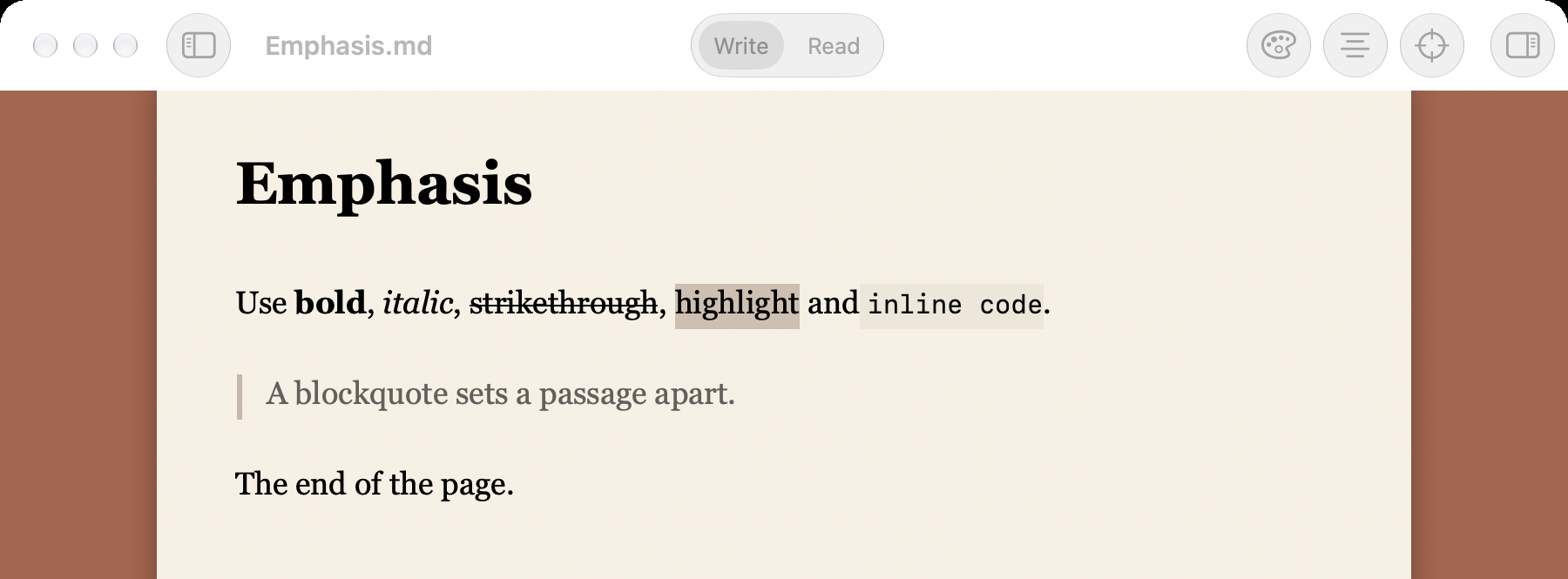
You type
# Emphasis

Use **bold**, *italic*, ~~strikethrough~~, ==highlight== and `inline code`.

> A blockquote sets a passage apart.
Cartamd shows
You type
# Packing

- [x] Notebook
- [x] Two pencils
- [ ] Field guide
  - Birds of the river
1. Leave at dawn
2. Walk to the bridge
Cartamd shows
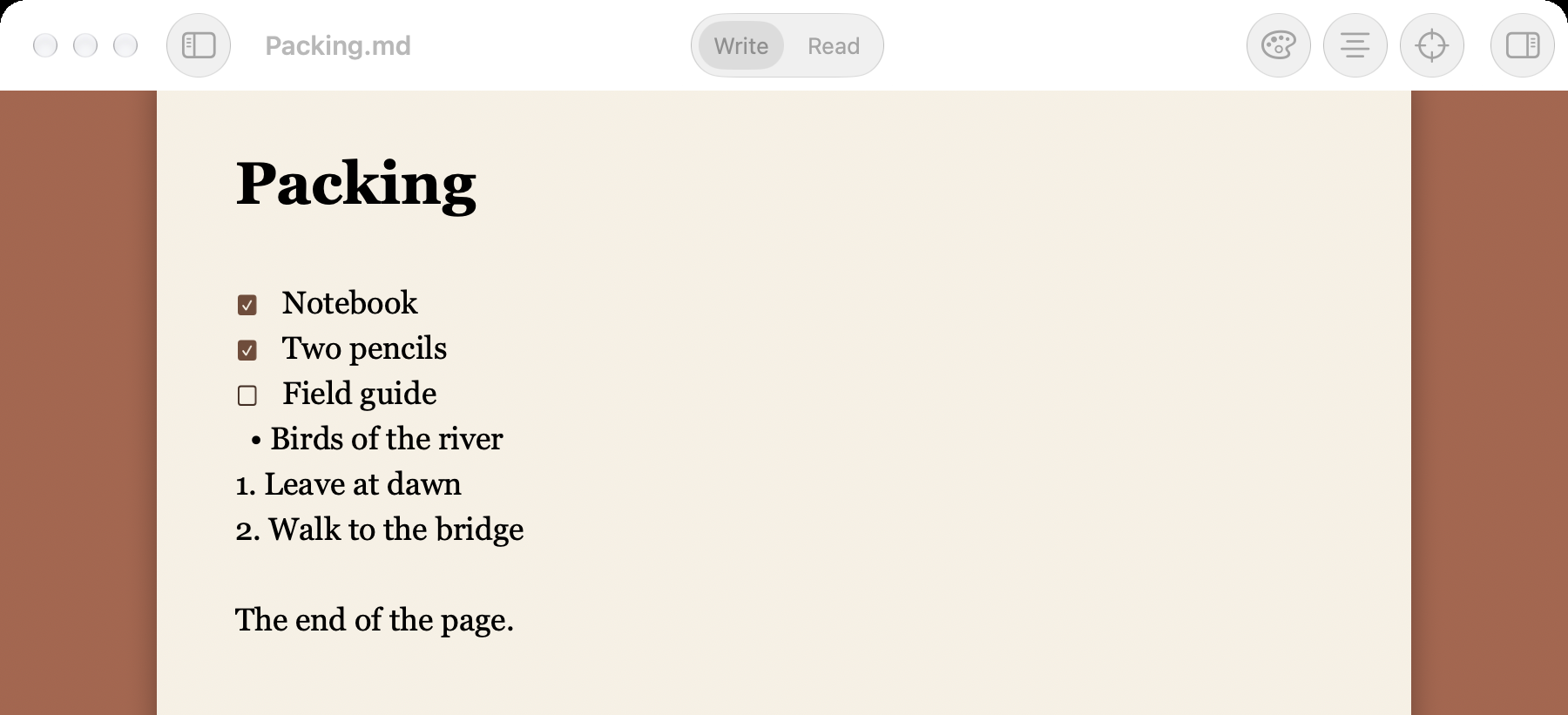
Click a checkbox to tick it, in Write or Read. Return continues a list, numbered for you.
You type
> [!TIP]
> The light is best an hour after sunrise.

> [!WARNING] Mind the tide
> The lower path floods by noon.
Cartamd shows
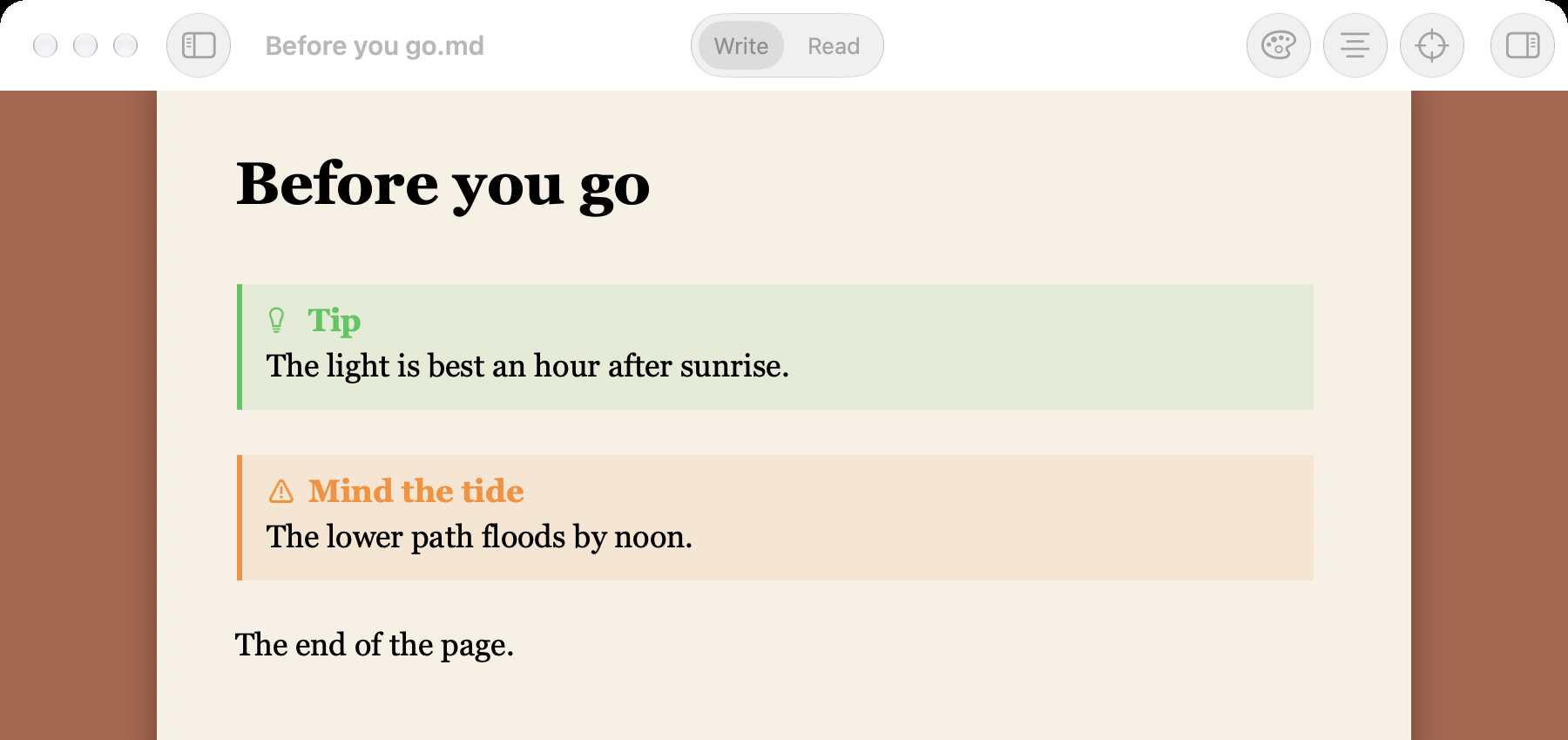
GitHub alerts and Obsidian callouts both work.
You type
```swift
struct Thought {
    let words: String

    func share() {
        print(words)
    }
}
```
Cartamd shows
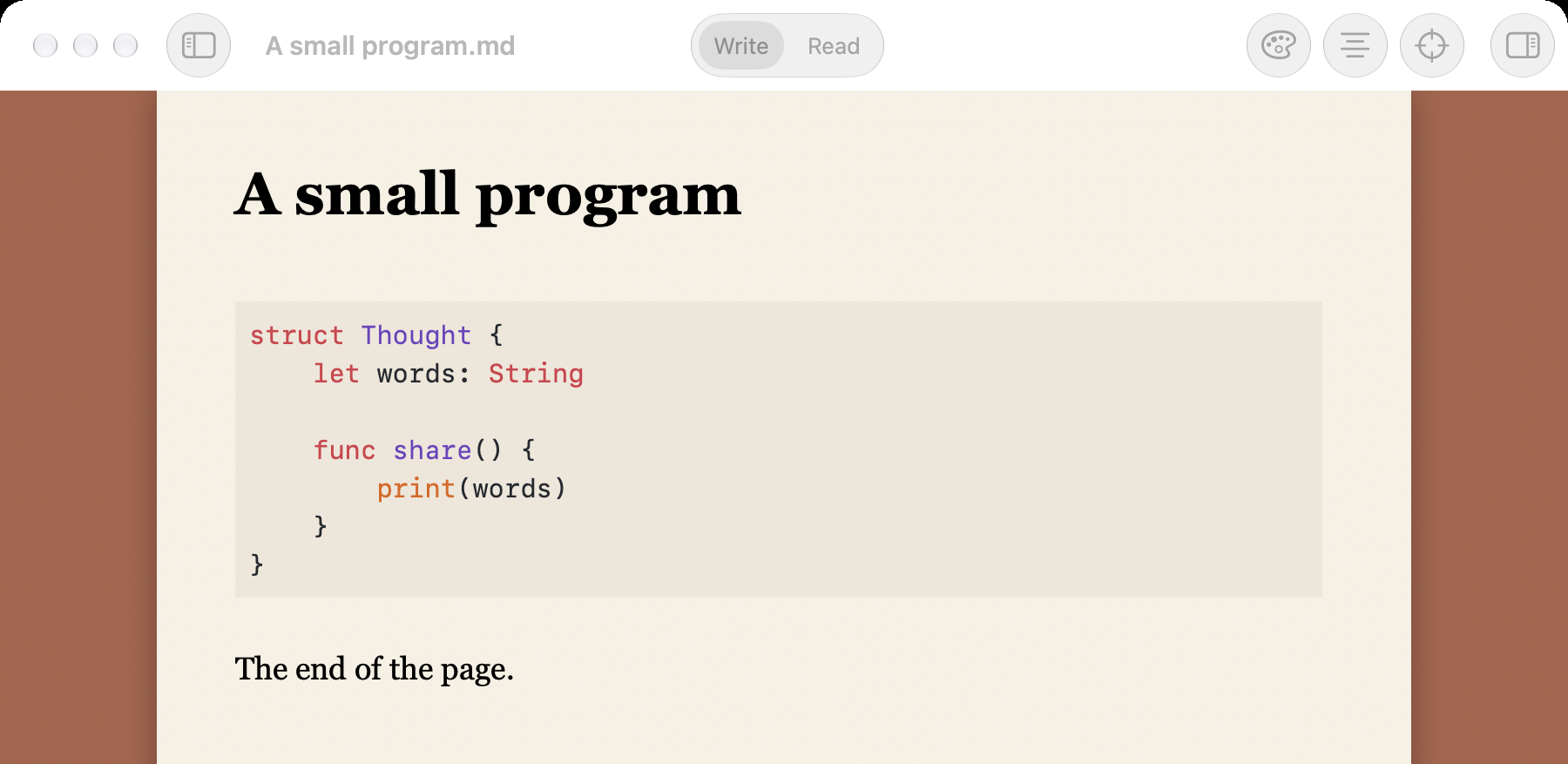
Syntax colors for the languages Highlight.js knows; four code color themes.
You type
Energy is $E = mc^2$, and a fraction $\frac{a}{b}$ sits in a sentence.

$$
x = \frac{-b \pm \sqrt{b^2 - 4ac}}{2a}
$$
Cartamd shows
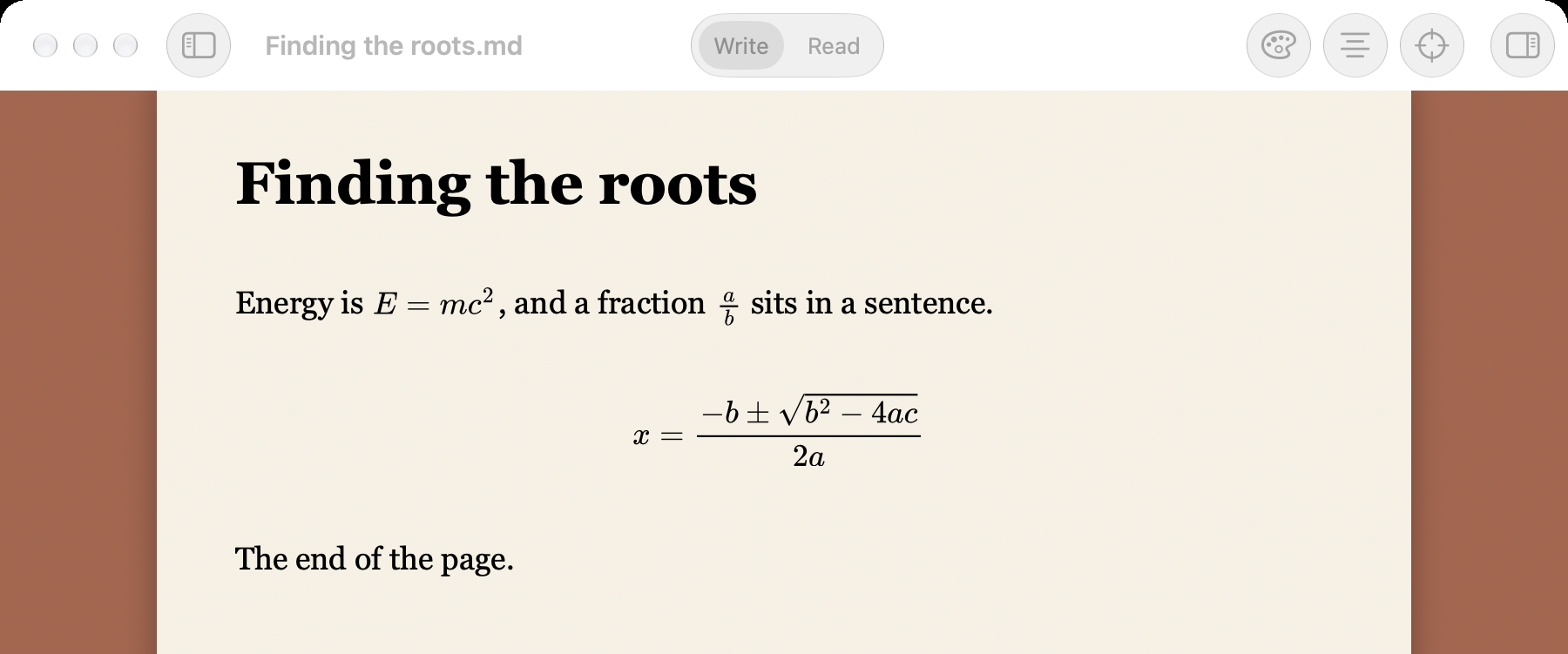
TeX math, rendered offline, in tables, print and every export.
You type
```mermaid
flowchart LR
    A[First draft] --> B{Ready?}
    B -->|Yes| C[Publish]
    B -->|Not yet| D[Revise]
    D --> B
```
Cartamd shows
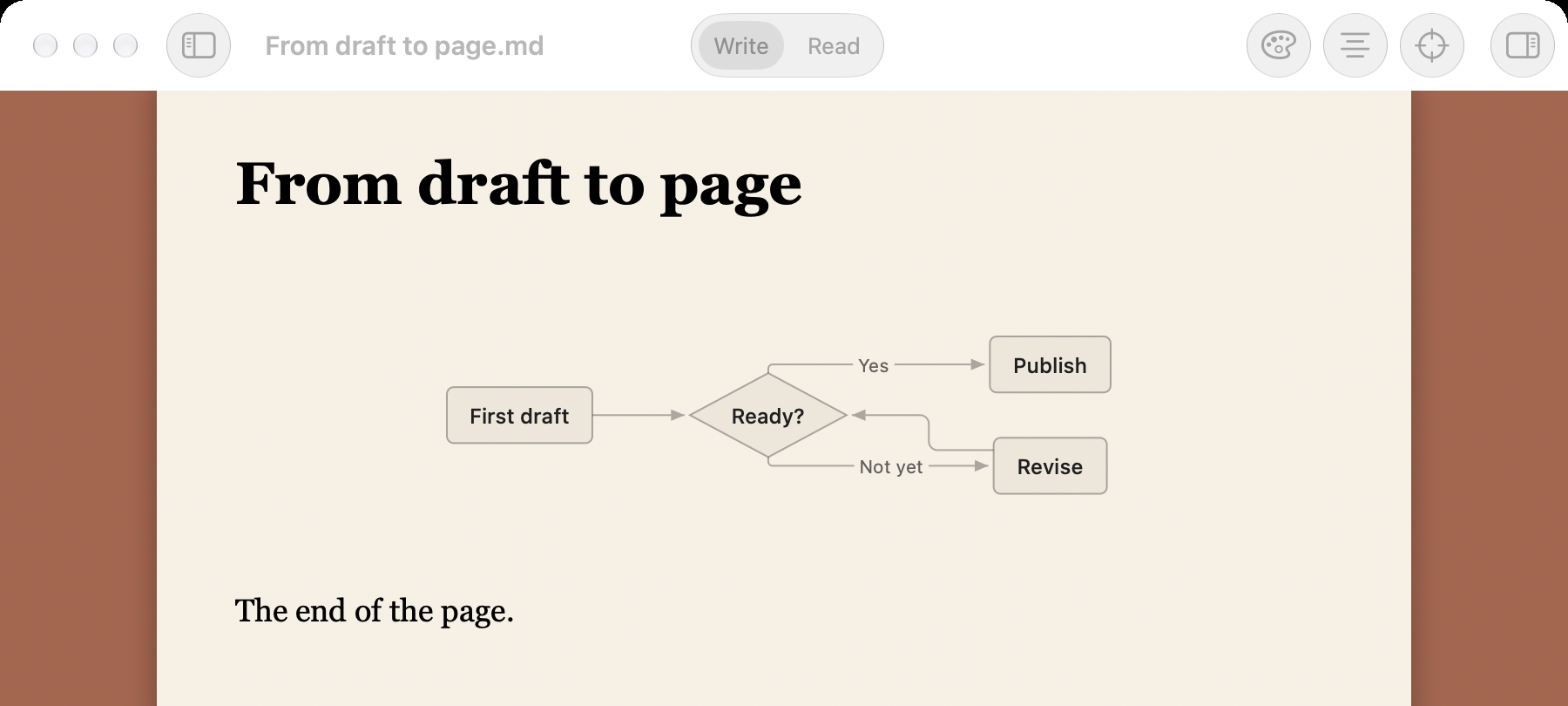
Cartamd draws flowcharts, sequence diagrams, Gantt charts and more itself, with no web view.
Spelling, quotes and goals
- Check Spelling While Typing underlines prose, never code or link addresses.
- Smart Quotes and Smart Dashes are off by default. Code, links and frontmatter keep straight quotes unless you turn on Also in code.
- Show Word Count counts prose, not code or equations. A Word goal in a note’s Appearance tab shows progress, such as “640 of 1000 words (64%)”.
- Paste from Safari, Notes, Word or TextEdit and the formatting comes in as Markdown. Paste and Match Style (⌥⇧⌘V) pastes plain text.