
Print and export
One file in,
every format out.
Your Markdown stays the source. Print it, or export a PDF, a web page, a Word document, an e-book or a LaTeX project, with your fonts, colors, equations, diagrams and footnotes carried through. Everything on this page was exported by Cartamd from one sample note.
PDF and print, laid out properly
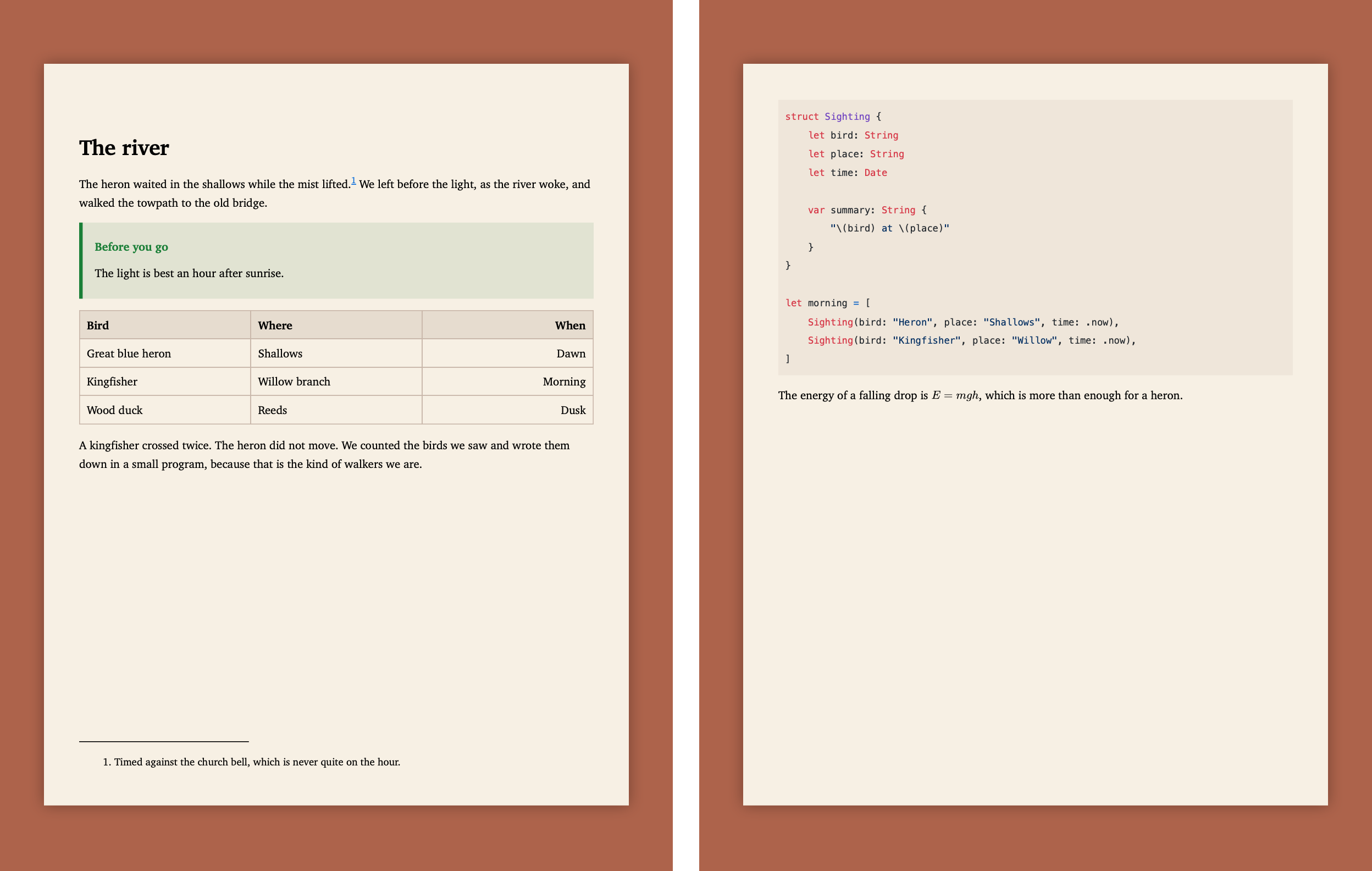
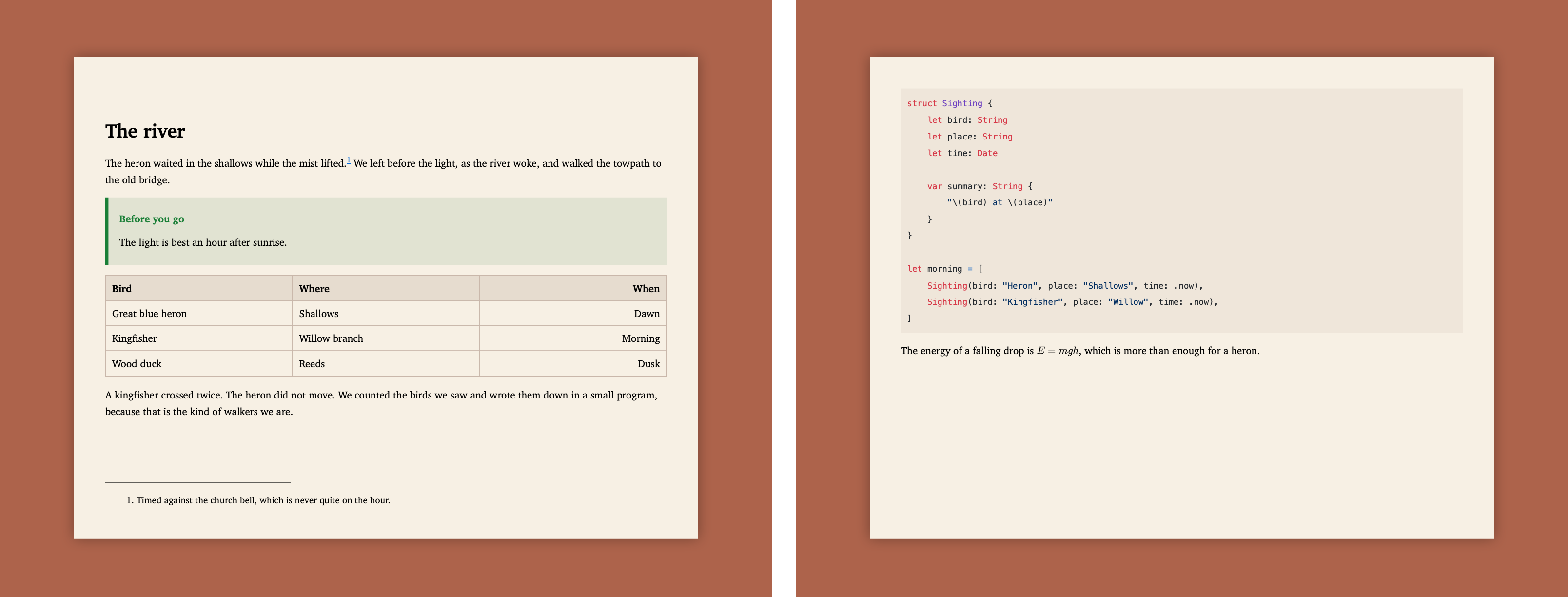
Export as PDF… and File → Print… (⌘P) use the paper size and orientation from Page Setup. With Document Appearance on, pages carry the note’s fonts, colors and spacing.
- A code block, callout or table that fits on a page is never split: it moves whole to the next page. A longer one breaks between lines, never leaving one line alone.
- Footnotes sit at the foot of their page.
- Every heading becomes a PDF bookmark, nested like the outline.
- Print Background Colors is off by default to save ink.
Title pages, chapters and an index
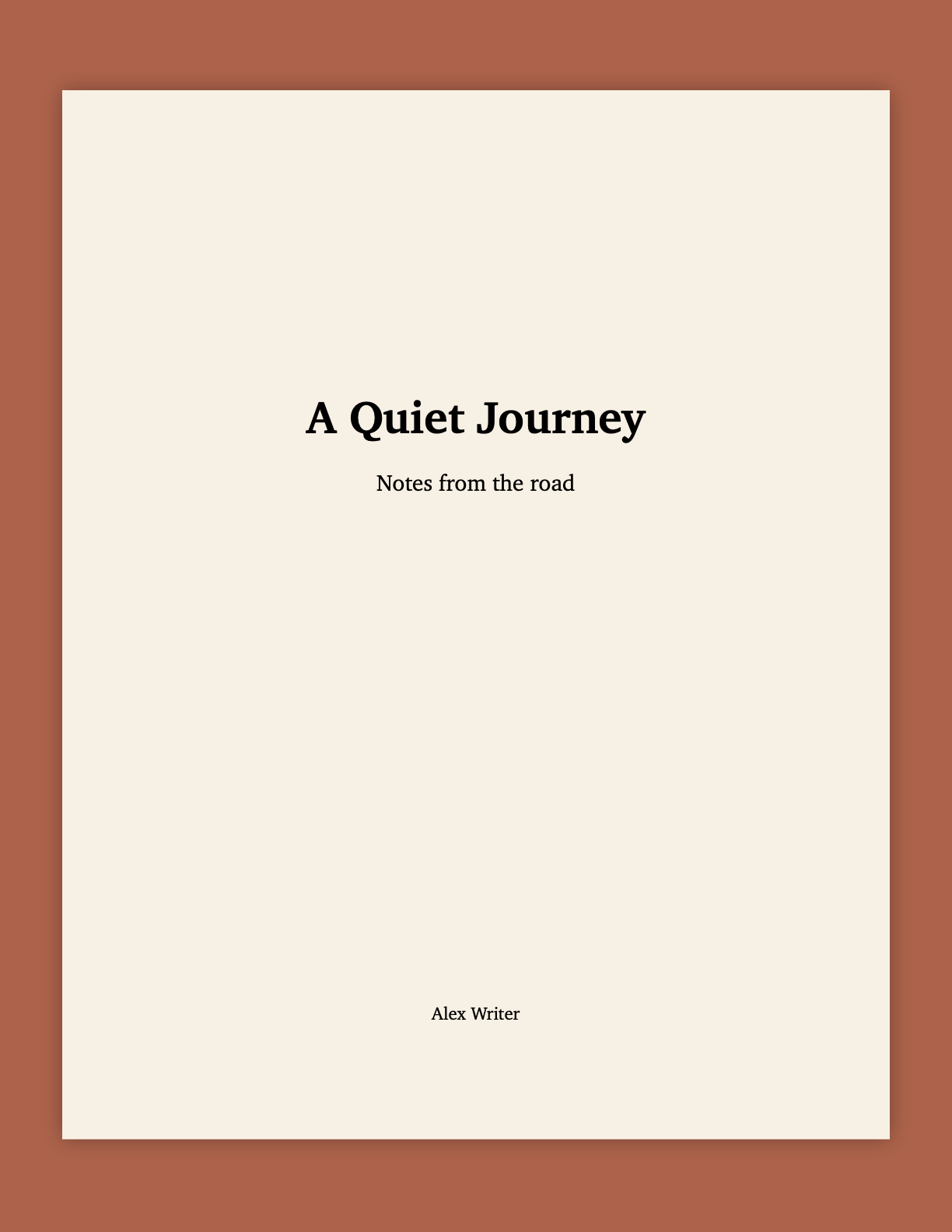
Set Title page to Centered or Classic and start the note with a Heading 1 title, an optional subtitle and author, then ---. Chapters start at a heading level you pick, each on a new page.
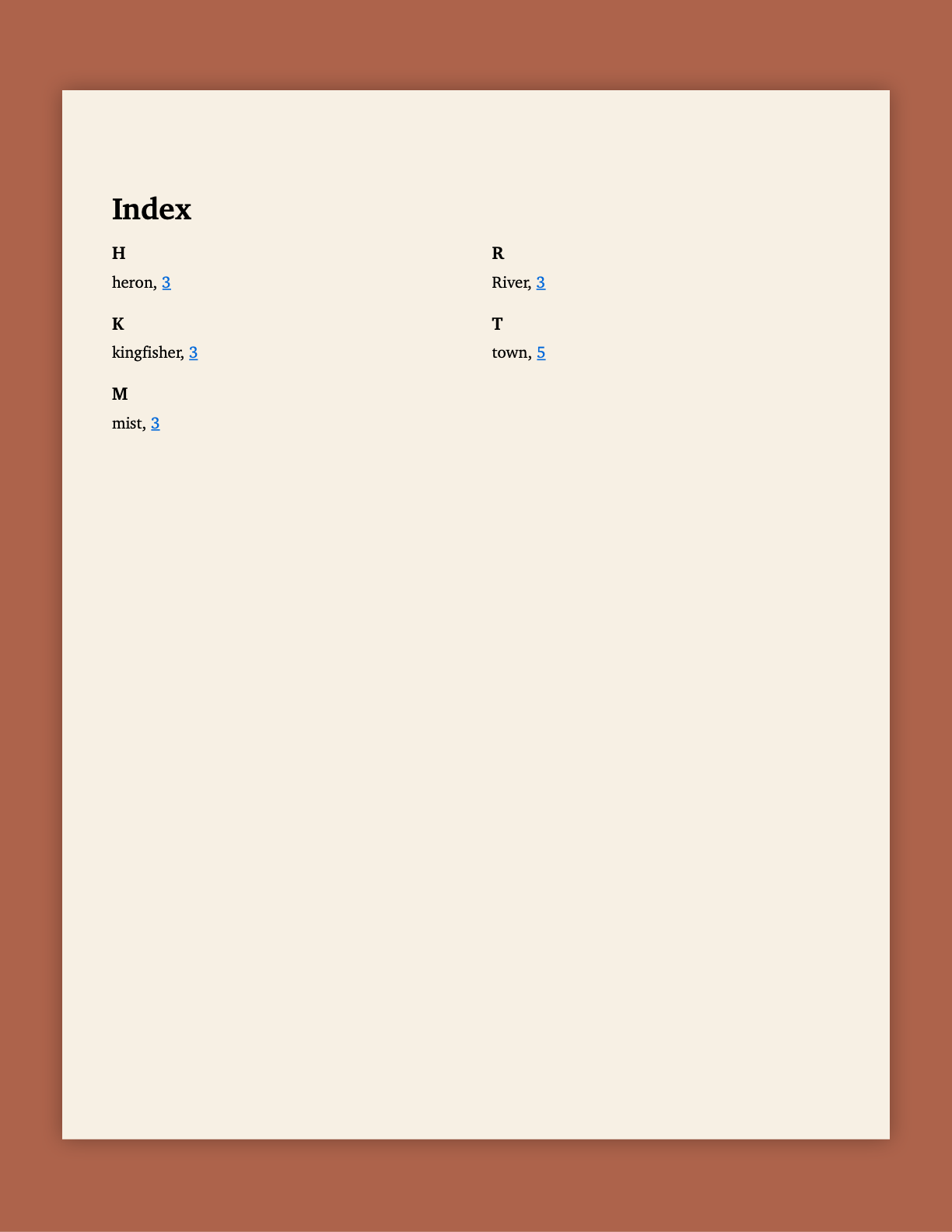
PDF and print end with a book index built from your {.index} markers: alphabetical, under letter headings, with every page number linked to its page. An optional table of contents shows page numbers too.
One HTML file
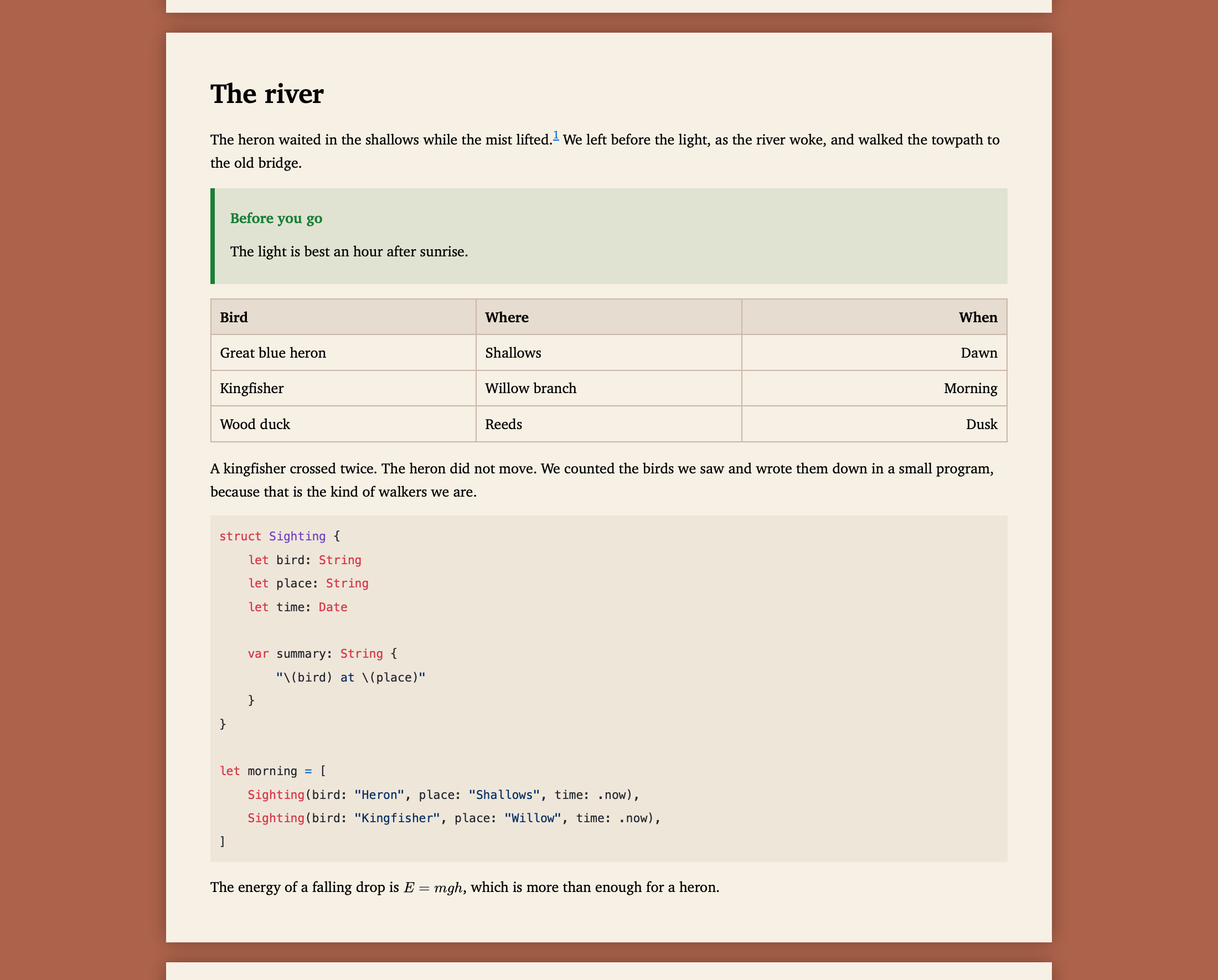
Export as HTML… writes a single file with its images and embedded notes inside, in the note’s style or a plain light one. Equations and diagrams are drawn, frontmatter is left out, and the page runs no scripts.
Word and EPUB
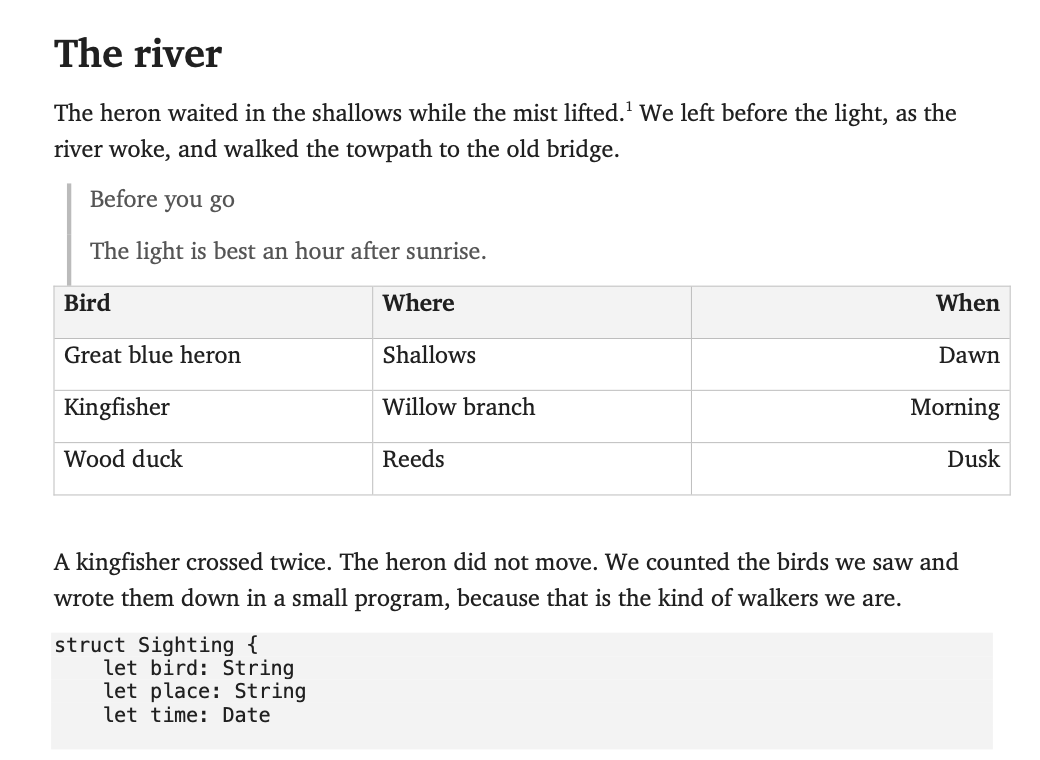
Export as Word Document… saves a .docx with headings, lists, tables, code, links, footnotes and images, using Word’s own styles so it restyles in Word or Pages.
Export as EPUB… saves an EPUB 3 book for Apple Books and other readers. Each Heading 1 starts a chapter, and images, equations and diagrams come along. The title and author come from the frontmatter.
.docx, previewed with Quick Look.LaTeX, ready for Overleaf
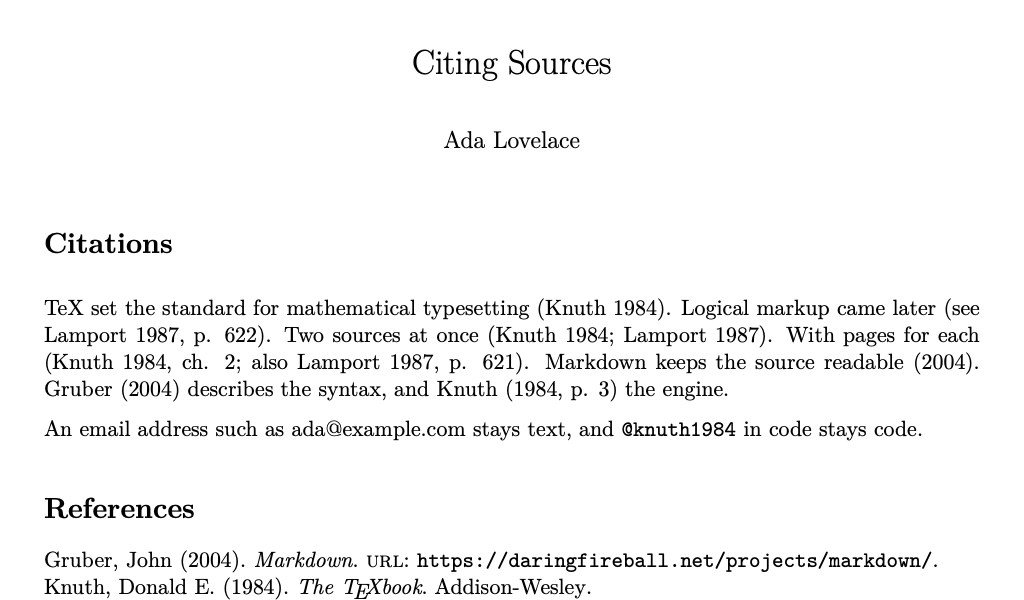
Export as LaTeX… saves a folder with a .tex file and its images. Zip it for Overleaf, or compile with pdfLaTeX, XeLaTeX or LuaLaTeX. Equations keep their TeX, footnotes become footnotes, index markers become \index entries, and citations go to biblatex.
Paper options travel in the frontmatter with Pandoc’s names: documentclass, fontsize, twocolumn, numbersections, abstract, keywords and more.
You write
TeX set the standard for mathematical typesetting [@knuth1984].
Logical markup came later [see @lamport1986, p. 622].
@gruber2004 describes the syntax.
The .tex gets
TeX set the standard for mathematical typesetting \parencite{knuth1984}.
Logical markup came later \parencite[see][p. 622]{lamport1986}.
\textcite{gruber2004} describes the syntax.
pdfLaTeX draws
Copy as rich text
Copy as Rich Text (⌥⌘C) copies the selection, or the whole note, as formatted text for Mail, Pages or Google Docs. Copy as HTML (⌥⇧⌘C) copies its HTML. Images come along, and links to local files stay relative, so no folder paths leak out.
The other way works too: paste from Safari, Notes or Word and get Markdown back.
On iPhone and iPad
The Export button at the top of a note lists the same formats and Print…, with the Mac’s options. The file goes to the share sheet, to save to Files or send to another app; nothing is written beside the note. PDF pages are US Letter or A4 by region, themed like the Mac’s, with footnotes, the contents list, the index and bookmarks. There is no Page Setup, and Word leaves out SVG images.